Welcome to SourceDay!
As a new supplier, you can easily work with your buyer on purchase orders (POs) — directly from your email. No need to log into the platform to get started.
All actions you take from email are automatically shared with your customer.
What you can do from email
From a SourceDay email, you can:
- Review purchase order details
- Print PO pdf
- Acknowledge orders
- Propose updates (dates, quantities, etc.)
- Respond to buyer changes
- Add shipment information
How it works
- Open a SourceDay email notification
- Review the purchase order details
- Select an action or reply with your updates
- Submit your response
Your update is sent to your customer and tracked in SourceDay.
Step 1: Open the PO from Your Email
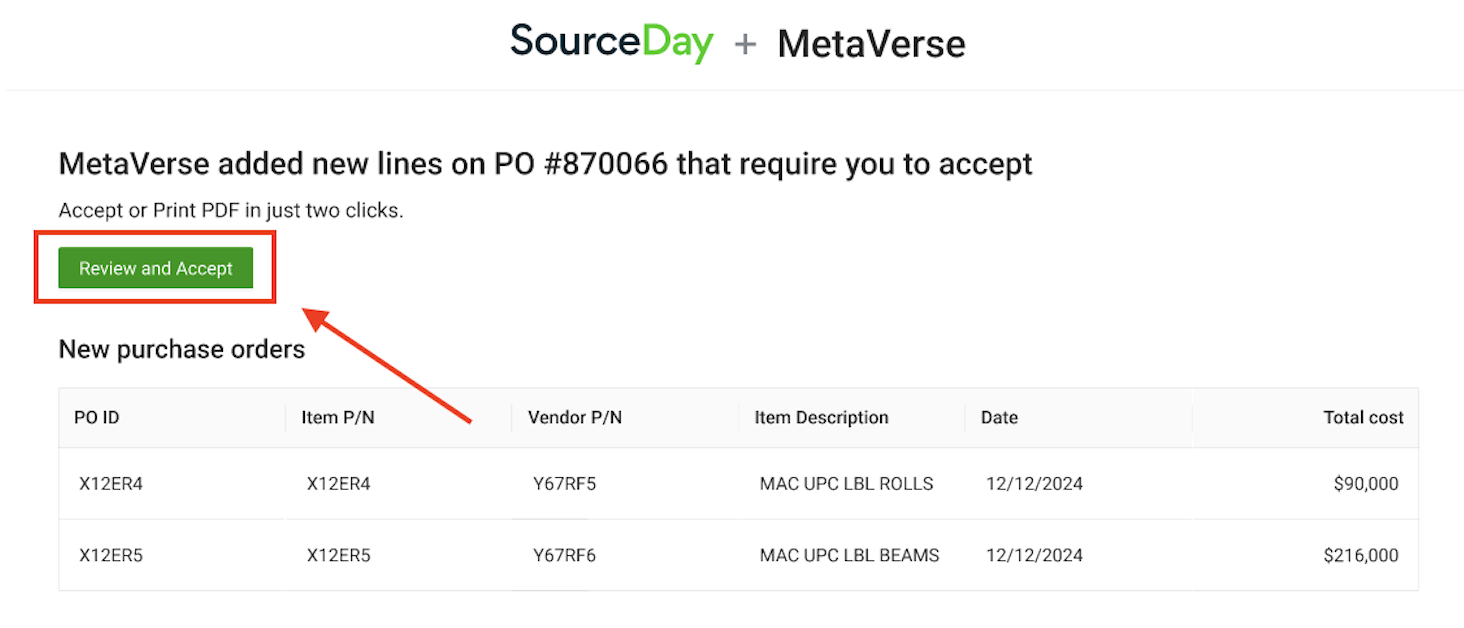
Look for a SourceDay notification email and click the “Review and Accept” link. This will take you straight to the PO window, no login required.
 Step 2: Take Action in the PO Window
You’ll see a dynamic view of your PO where you can complete the following actions:
A. Confirm New POs
Click on the lines you want to confirm.
Need to propose changes? Click into the date, quantity, or cost fields to propose edits.
When ready, click Accept or Submit.
B. Respond to Buyer’s Changes
If your buyer updated a PO, open the Required Actions dropdown and select Accept Line Changes.
You can either:
Accept the changes as-is, or
Propose your own changes directly in the editable fields.
Click Accept or Submit to complete your response.
C. Print the PO
Need a hard copy or PDF? Just click Print PDF at the top left of the page.
When to use email
Working from email is best when you:
- Manage a low volume of purchase orders
- Prefer not to log into a system
- Need to quickly respond to individual orders
Want to manage more in one place?
If you’re working with multiple POs or need more visibility, you can use the dashboard instead: